Dell UltraSharp U2718Q, a 27-inch 4K monitor that quickly became an important part of my desk setup. What attracted me to this display was the combination of 3840 x 2160 resolution, IPS panel, 60Hz refresh rate, and 5 ms response time. According to Dell’s user guide, the U2718Q offers a 27-inch viewable area, 4K UHD resolution, wide viewing angles, and support for 1.07 billion colors [1].
Why I chose it
I wanted a monitor that would be suitable for:
- daily office work
- programming
- photo and content viewing
- sharp text rendering
- enough screen space for multiple windows
The 4K resolution on a 27-inch panel gives a very crisp image, and the IPS technology helps with consistent colors and wide viewing angles. Dell also specifies strong color coverage, including 99.9% sRGB and 99.9% Rec. 709, which makes it a very solid all-round display for productivity and media consumption [2].
Main specifications
- Model: Dell UltraSharp U2718Q
- Screen size: 27 inch
- Resolution: 3840 x 2160
- Panel type: IPS
- Refresh rate: 60Hz
- Response time: 5 ms (fast mode), 8 ms (normal mode)
- Aspect ratio: 16:9
- Brightness: 350 cd/m²
- Contrast ratio: 1300:1
- Viewing angles: 178° / 178°
- Color depth: 1.07 billion colors [1] [2]
Connectivity
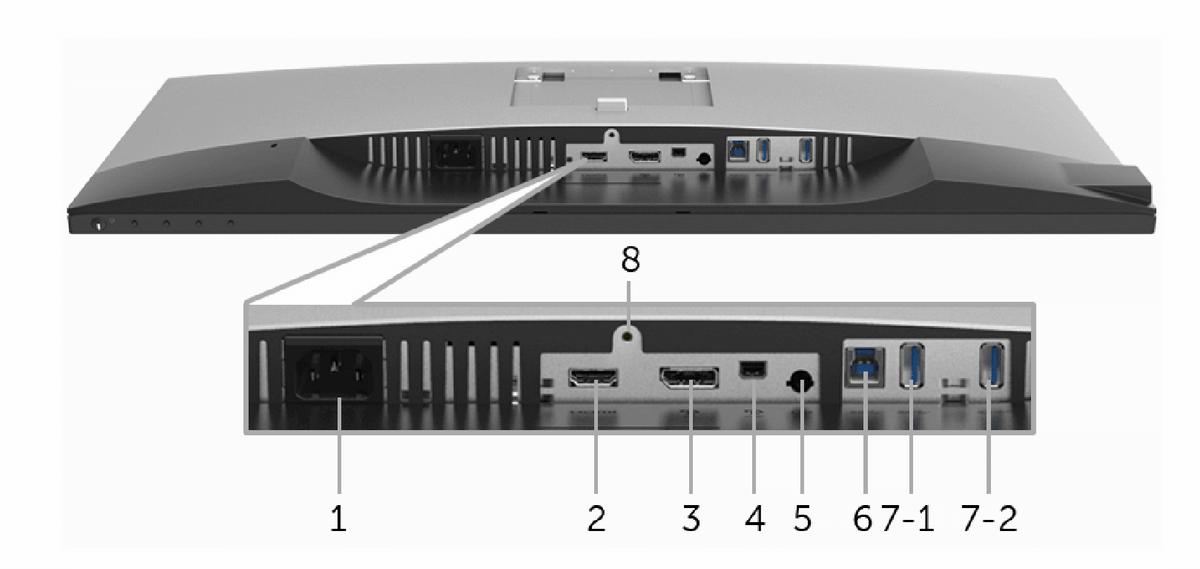
One of the strong points of this monitor is its flexibility. The U2718Q includes:
- DisplayPort
- Mini DisplayPort
- HDMI
- USB 3.0 hub
- audio line-out [1]
This made it easy to connect different systems over time, without constantly changing cables or adapters.
| Label | Description | Use |
|---|---|---|
| 1 | AC power connector | Connect the power cable. |
| 2 | HDMI port connector | Connect your computer with an HDMI cable. |
| 3 | DisplayPort in connector | Connect your computer with a DP cable. |
| 4 | Mini DisplayPort in connector | Connect your computer with a Mini-DP to DP cable. |
| 5 | Audio-Line out | Connect your speakers.* |
| 6 | USB upstream port | Connect the USB cable that came with your monitor to the computer. Once this cable is connected, you can use the USB connectors on the monitor. |
| 7-1 | USB downstream port | Connect your USB device. You can only use this connector after you have connected the USB cable to the computer and USB upstream connector on the monitor.** |
| 7-2 | USB downstream port with Power Charging | Connect to charge your device. |
| 8 | Stand lock feature | To lock the stand to the monitor using a M3 x 6 mm screw (screw not included). |
Design and ergonomics
The monitor has the typical Dell UltraSharp look: clean, professional, and understated. It also supports ergonomic adjustments and VESA mounting, which is always useful for a cleaner desk setup or monitor arm installation [1].
Final thoughts
The Dell U2718Q turned out to be a very good purchase. It delivered exactly what I wanted: a sharp 4K image, good colors, modern connectivity, and a design that fits well in a work-focused environment.
For productivity and everyday use, this monitor has been a reliable choice.